Wikipedia

Search results

3/10/2017

Online security 101: Tips for protecting your privacy from hackers and spies

Got nothing to hide? Think again.
Privacy is what sets us apart from the animals. It's also what sets many countries and citizens apart from dictatorships and despots. People often don't think about their rights until they need them -- whether it's when they're arrested at a protest or pulled over for a routine traffic stop.
Surveillance is also a part of life, and it's getting progressively more invasive. Government eavesdropping is increasing, carried out in wider secrecy, and it's becoming far morelocalized. In fact, the last three presidents have pushed for greater surveillance: Clinton introduced mandated wiretapping laws, Bush expanded mass domestic surveillance, and Obama expanded the intelligence service's reach -- just in time for Trump.
Now, with a new president in the Oval Office, many are concerned about the future of their fundamental freedoms and constitutional rights.
There is no such thing as perfect security. But no matter who you are or where you are in the world, there are a lot of things you can do -- many of which are simple -- to protect yourself in this turbulent time.

THE SIMPLE STUFF

Your privacy, at its core, relies on your data being secure.
There are some professions -- such as government workers, journalists, and activists -- who face far more and complex threats than the average citizen, who should usually only worry about tech companies tracking them to serve up the best kinds of ads, or government bulk data collection of their personal records. But everyone can take the basic advice and modify it on varying degrees.
In this info graphic you will learn the what Layered Security is and how using different cyber security solutions work together to reduce the attack surface of a network system.
White Papers provided by Malwarebytes
While most apps and services nowadays secure your data with encryption on their servers to prevent data from being readable if hacked or served with a government subpoena, many more now are providing it "end-to-end." In other words, nobody else can see what's sent, stored, or received, other than you and the person you're talking to -- not even the companies themselves.
Usually, the only way to break that "end-to-end" model is to attack an endpoint, such as the device you're using, the internet pipe that the data's traveling along, or the company's servers.
If you secure each of those points, you're well on the way in keeping your data private.

SECURE YOUR DEVICES

Your phone is your ultimate endpoint. You carry it everywhere and it usually holds your most personal secrets and sensitive information.
iPhones are widely seen as the most secure mainstream device today. Modern and newer Android devices usually come with strong security features, but there isn't a universal implementation of encryption yet. Your iPhone encrypts as soon as you lock your screen (even the feds can't access it), but Android devices have to be shut down entirely.
Here's a guide on how to secure your iPhone, and here's another guide for most Android devices.

TURN OFF FINGERPRINT PHONE UNLOCK

Your Touch ID or fingerprint sensor is meant to keep your data more secure. But in some cases federal agents can force you to unlock your phone with your fingerprint, because the courts have determined that it's not a violation of the Fifth Amendment, which protects against self-incrimination. The feds however can't force you to turn over your passcode.
Turn off Touch ID by going to Settings > Touch ID & Passcode > turn off iPhone Unlock. (Android users can go to Settings > Security > Lock Screen or Nexus Imprint.)

BE MINDFUL OF EVERY APP YOU INSTALL

Each time you install an app, it will ask you for permissions to your phone's features or data, like your contacts, photos, camera, or even the phone dialer itself. Be mindful of apps that you install, as a single rogue app can punch a hole in your privacy protections.
Take Meitu, the anime photo app that whipped up a privacy storm. For such a simple app, it required almost unlimited and unfettered access to your phone. Remember: if an app is free, you're paying for it in some other way -- and usually it's with your data.

SET A STRONG PASSCODE

Chances are you're already using a six-digit passcode, if you're using a modern version of iOS. But you can make the code as long as you like. We have a simple and handy guide here. Choosing the "custom numeric code" will still give you the number keypad on the lock screen, making the passcode entry easier to type in.

USE A COMPUTER? TAKE THIS ADVICE

Keeping your devices and apps up to date will significantly reduce attacks. Every app or service you install will increase your vulnerability risks because no software is perfect. If you have preinstalled apps or "bloatware," you should remove those -- and that includes web plugins like Adobe's FlashOracle's Java, and Apple's QuickTime. Using ad-blockers can prevent ads from installing tracking cookies and even malware (which happens surprisinglyoften).
You should also consider encrypting your computer, which is easy if you use either Windows or a Mac. Just make sure you don't upload your encryption keys to the cloud, otherwise Microsoft or Apple could be forced to turn them over.
Yes, Windows 10 is more secure than Windows 7, but it's understandable that many think it's a privacy nightmare. We have a separate Windows 10 privacy guide that shows you the right options for you.

SECURE YOUR MESSAGING

Now that your device is secure, you should think about your data in-transit -- that is, as it traverses the waves of the wireless spectrum and the pipes of the internet.
SMS messages and phone calls can be intercepted and wiretapped at any time -- it's the law. Police can also use cell-site simulators (known as "stingrays") to force-downgrade your cell connection from LTE to non-encrypted channels to make it easier to snoop on your phone.
It's not just the messages you send that you need to worry about; you also have to think about the data that's generated as a result -- so-called metadata, such as who you're talking to, when, and sometimes where. That information alone can tell a lot about your life, which is why it's so important to intelligence services. Metadata is a core pillar of government surveillance.
Countering metadata collection isn't easy, but its collection can be limited. The trick? Use the right app.
Let's get one myth out of the way: There is no secure email solution -- at least not yet. While there are systems like PGP encryption, which remains the favorite for scrambling the contents of email messages, it's not as strong as it used to be and better instant communications exist.
In ranked order, best first:

USE SIGNAL FOR ENCRYPTED MESSAGING

Signal is by far the simplest and the most secure app when it's used properly. Available for iOS and Android, the end-to-end encrypted messenger was almost universally accepted as the gold standard among security experts and professionals after its debut audit.
The messaging app and its desktop counterpart are also open-source, meaning anyone can look at and inspect the code to ensure there are no backdoors. And, Signal almost entirely removes itself from the surveillance loop by collecting almost no metadata. Even if a user chooses to upload their contacts list to Signal, each record is scrambled and can't be used by the intelligence services.
signal-pic.png
Using a secure messaging app alone won't keep you secure. Ensuring that you properly verify the keys of those you're talking to will ensure that you're not talking to someone else. (Image: ZDNet)
The Intercept has a simple guide on how to verify your contacts in the unlikely event that your communications are being intercepted. You usually only do this only once (unless you or someone you're talking to changes device).
You can download Signal here.

IGNORE THE FEARMONGERS. WHATSAPP IS BASICALLY FINE

If you heard recently that WhatsApp has a "backdoor," it's wrong. So wrong, in fact, that some of the world's foremost security experts and cryptographers have called for the story to be retracted.
The end-to-end encrypted messenger, owned by Facebook, works on a range of devices, including desktop. At its core, it uses the same protocols as Signal -- so it's secure and neither Facebook, WhatsApp, or anyone else can read your messages.
WhatsApp is fine as long as it's being used properly by verifying your keys with the other party. Make sure that you enable security notifications so you can monitor for any key changes.
Do this by going to WhatsApp then Chats > Chat Backup > then set Auto Backup to Off.
You should also turn off online backups -- both on the app and iCloud and Android's settings -- as backups can be cherry-picked out of the cloud by law enforcement with a search warrant.
The app does collect and store more metadata than Signal. That means the government, if it demands data from Facebook, could see who you're talking to and when. A recent report by Forbes confirms that the company could be forced to turn over data it collects, such as IP addresses, phone identifiers, and even location data in some cases.

IMESSAGE IS OK, BUT BE MINDFUL

Apple's iMessage is also encrypted end-to-end, but you can't verify your keys with the people you're messaging. That's a problem, because you can't ever be sure that your messages aren't being intercepted. Recent developments have shown that the system is vulnerable to man-in-the-middle attacks, so don't rely on the system for critical communications. And again, don't back up your messages to iCloud, because Apple can be forced to turn that data over to law enforcement. End-to-end encryption refers to your message securely traversing the internet and not when it's in storage.
That said, you should regularly carry out an encrypted local backup your iPhone or iPad on occasion. It's very simple to do, and can restore your data if you break your device.

AS FOR ENCRYPTED EMAIL...

Again, encrypted email is a fallacy, so you should get the idea out of your head. Consider services that don't require you to handle private keys, such as ProtonMail, which now comes with support for the Tor browser (more on that shortly).
Or, there's still PGP, which remains clunky and difficult to use for even many advanced users. Even the creator of PGP admits he doesn't use it anymore. If you really want to use PGP, get started with these Windows or Mac guides from the Electronic Frontier Foundation.
Or, if you can get an invite to Keybase.io (you can find some here or by searching Twitter), you can choose to import your PGP private key and use the web-based encrypt and decrypt tools. This has raised some eyebrows, but it's entirely optional, as it makes scrambling and unscrambling PGP messages and files significantly easier.

SECURE YOUR BROWSING

Browsing is usually at the heart of what most people do. But just as you're looking out at the world, you also have a lot trying to look in. Ad networks will track you from site to site, your internet provider will log which pages you visit, and hackers will try to target you.
Without getting too into the weeds, no browser is perfect, but some are better than others.
When it comes to the gold standard of privacy, consider using Tor. It's like a regular browser with privacy benefits, and it's often used by the privacy conscious, such as reporters and activists.
tor-screenshot.png
Tor Browser is a great tool for secure and private browsing. But remember, be careful with plugins and browser extensions as these will significantly weaken the browser's security. (Image: ZDNet)
The Tor browser lets its users browse the internet anonymously by bouncing traffic through multiple relays. Not only does it hide a user's internet history, it's also used to circumvent state-sanctioned network blocks. The service also allows users to browse parts of the dark web, which aren't accessible through traditional browsers and networks, as well as websites and services that are blocked in your region.
You can use Tor for anything -- but streaming video can be slow, and some web plugins (like Flash) are generally disabled as these can be used to de-anonymize you, defeating the point altogether.
With other browsers, to enhance your security, you can install the HTTPS Everywhere plugin (available for most popular browsers), which forces websites that support website encryption to turn it on by default.
Secure sites are your friend, because it means an attacker can't modify the pages and that internet providers (and the government) can't see which individual web pages you visit on a domain.
You can also use mobile versions of the Tor browser called Orbot for Android and Onion Browser for iOS, both of which are also open source.
Both of these apps are widely used and trusted by leading security researchers.

PUBLIC WI-FI NETWORKS ARE A BIG 'NO'

Remember: If you ever use a public network, like a Wi-Fi hotspot in a coffee shop or anywhere else, be extremely careful. Treat this network as though every page you visit will be monitored -- which may expose your personal information, including your usernames and passwords.

USE YOUR PHONE'S DATA FOR BETTER SECURITY

If you need a secure network, you should use your phone's data -- such as 4G or LTE -- or use your phone as a hotspot for your computer. It's far better to use your phone's data plan for anything important than using insecure public Wi-Fi.
You can usually find your hotspot option in iPhone's settings or Android's notification tray.

BE AWARE OF STINGRAY 'DOWNGRADE' ATTACKS

On that note, be mindful of your connection if you're at public or high-profile events, including protests or demonstrations. We mentioned earlier that police can use "stingrays" to intercept your phone calls and texts, and possibly your browsing data.
There's a lot of secrecy surrounding stingrays, such as who has them and what they do, but some news outlets have discovered other tech with similar aims. Most modern phones use high-speed LTE, which comes with encryption, making interception almost impossible. By blocking or jamming LTE and 3G, the stingray can force a phone into connecting to 2G, which can be easily intercepted by the stingray.
If you're at a protest or other high-security event and you suddenly lose LTE connectivity and are pushed to 2G, that could be a sign your communications are being monitored. (Image: CNET/CBS Interactive)
Android users can select a "preferred network type" such as LTE only by accessing a hidden Android menu. Here's a helpful guide which explains how to do it.
For iPhones, you have the option to select LTE as a preference, but no way to disable 2G. Go to Settings > Cellular > Cellular Data Options Enable LTE > and select Voice & Data.
Then, use your smarts: If you're in a busy area, such as a city, and you suddenly lose LTE connectivity in the middle of a protest, your phone may have been tricked into connecting to a stingray.

SECURE YOUR SERVERS AND CLOUDS

You've secured your phone, your computer, and you can communicate and browse with relative safety. But you still store a wealth of data in the cloud -- in other words, other people's servers.
US citizens and residents have Fourth Amendment protections against unreasonable searches and seizures. In other words, police must get a warrant before anything's searched or taken. But those protections are less clear when it comes to the cloud, according to a guide cross-posted by the Freedom of the Press Foundation. In most cases, authorities still need a warrant to access your data, but they can still serve subpoenas, which don't require a judge to sign off on, to access limited metadata.
It's not only wise to be careful with what you store in the cloud wherever possible, but also to ensure that your various clouds are secure. Some services even allow their staff to read and access your content.

ENSURE YOU USE STRONG PASSWORDS

You must use a strong, unique alphanumeric password that is at least in the double-digits of characters for each account you have. Use a password manager like LastPass, 1Password, or Dashlane to generate strong passwords for you.
Once you set strong and unique passwords for each account, it's not necessary to change them often. Many -- even government agencies themselves -- say it's bad advice to change your password often.

NOW, SET UP TWO FACTOR AUTHENTICATION ON EVERYTHING

Two-factor authentication adds an extra layer of protection to your accounts. Once you enter your password, you'll get a code sent to your phone to make sure it's you.
This helps prevent account takeovers from hackers. CNET has a great explainer on two-factor, and why it's so important.
If you are a reporter or a government worker, it's wise wherever possible to have your two-factor token sent to you by an authenticator app, which delivers a code via an encrypted channel. This is because in some cases, SMS messages can be intercepted in a number of ways, such as exploiting flaws in the cell network. But, for most people, receiving two-factor tokens over SMS is generally fine.
You may use many different services, and each process is different. But one website, the aptly-named Turn It On has you covered. It explains how to set up two-factor authentication on dozens of major websites, including Facebook, Google, Twitter, and more.
Just make sure you keep your phone number safe. You might want to set up a strong and secure passcode for your phone account by calling your cell provider.
If you do decide to use an encrypted two-factor app, Google Authenticator is highly recommended, as well as Duo Mobile.

DELETE ANY ACCOUNTS YOU NO LONGER USE

If you know you have an account that you never use, log in (or use its "forget password" tool if you can't remember your password) and shut down the account. You can find out the best way by going to JustDeleteMe, which explains how for each site.
Holding onto these old accounts may expose you to greater hacks or intrusions down the line, even if you long forgot about them.

DON'T STORE YOUR ENCRYPTION KEYS IN THE CLOUD

You should encrypt as much of your data wherever possible. To make life easier, some providers allow you to upload your encryption keys in case you get locked out of your account. Helpful, yes, but a huge risk to your privacy if leaked.
Windows lets you upload your BitLocker encryption key to the Microsoft cloud. To check to see you have already, go to your Microsoft account, log in, and check. Back up the key onto your computer and delete it from the webpage. You can then re-encrypt your device by following this guide.
Macs also offer the same option. Once you begin encrypting your Mac hard drive, you are given the option to upload your key to your iCloud. If you choose not to, you'll be given a recovery key which can you can keep safe, and your encryption key won't be uploaded to Apple's servers.

BEWARE THE HARD PART

There's a lot you can do to ensure your personal security and data privacy, but all too often it takes two to tango -- in that you should ask your friends, colleagues, and others you communicate with to also jump in.
When it comes to messaging and communication, you put your privacy in their hands as they do yours. It's a collective effort that everyone can -- and should -- support.

1/19/2017

Les smartphones Android seraient plus fiables que les dispositifs iOS

Selon un rapport du cabinet d’analyse Blancco Technology, les dispositifs mobiles équipés d’iOS auraient plus tendance à « planter » que les smartphones Android.

Pour la première fois, il semblerait que les appareils Android soient plus fiables que ceux de son concurrent Apple, équipés d’iOS. C’est ce qui ressort des résultats d’une étude menée par le cabinet Blancco Technology, concernant le deuxième trimestre 2016.

Android aurait moins tendance à planter que iOS

Voilà une étude dont se serait bien passé Apple dont les ventes d’iPhone sont en recul et à quelques semaines de la présentation officielle de ses nouveaux appareils. Le cabinet Blancco Technology révèle en effet que les dispositifs équipés de l’OS mobile de la marque à la pomme, iOS, ne seraient plus aussi fiables. Ils auraient en effet plus tendance à souffrir de bugs ou de plantages que les appareils équipés de l’OS concurrent, Android. C’est une première dans l’histoire de la firme de Cupertino.
A en croire les résultats de l’étude, le taux d’échec des appareils iOS aurait doublé au deuxième trimestre 2016 par rapport au trimestre précédent, en atteignant 58%. La majorité des problèmes viendraient des applications (65%). Les applications les plus problématiques étant Snapchat pour 17% des plantages, Instagram, Facebook et Facebook Messenger. La connectivité du WiFi est pour sa part responsable de 11% des plantages des appareils.
Android n’est bien sûr pas exempt de plantages mais dans une moindre proportion que son concurrent, le taux d’échec passant de 44% à 35% entre le premier et le deuxième trimestre 2016. Plus en détail, c’est la caméra qui pose généralement le plus de problèmes avec 10% des plantages. Viennent ensuite le chargement de la batterie, la couche tactile et les hauts parleurs.

L’iPhone 6 serait le plus touché

C’est sur l’iPhone 6 qu’a été observé le taux d’échec le plus important puis, dans l’ordre, sur les modèles 6S, 6 plus et 6S plus. Ce sont donc les iPhone les plus récents qui posent le plus de problèmes. Apple devrait cependant profiter de la sortie de ses nouveaux terminaux pour redorer son blason.
Du côté des fabricants proposant des smartphones Android, c’est sur les modèles Samsung que le taux d’échec est le plus élevé (26%). Un résultat logique lorsque l’on sait que le sud-coréen domine largement le marché des smartphones. Ensuite on trouve Lenovo (17%), LeTV (17%), Motorola (11%) et enfin Asus (7%).

12/28/2016

Xbox One review

JUMP TO SECTION:

OUR VERDICT

Far better than it once was, and destined to keep improving, Xbox One is a truly modern piece of kit. It suffers for its catch-all approach a little, but you won't see some of its tricks on any competitor's machine.

FOR

  • Excellent game selection
  • Great online service
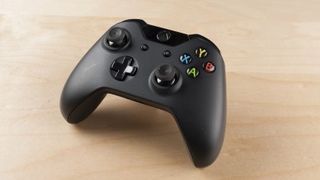
  • The best controller going
  • Unmatched media features
  • Able to evolve constantly
  • Backwards compatibility

AGAINST

  • Kinect is a failure
  • Inferior graphics
  • Xbox Live Gold-dependent
  • Controller still uses batteries

Microsoft Xbox One deals

PRE-OWNED 500GB CONSOLE
$179.99
Shipping from Free
$200.00
Shipping from Free
GEARS OF WAR: ULTIMATE EDITION
GEARS OF WAR: ULTIMATE EDITION BUNDLE
$244.24
Shipping from Free
$419.99
Shipping from Free
The Xbox One is a formidable console. It's got a heap of excellent exclusives, and its interface is getting better and better as Microsoft improves upon it.
But with the Xbox One S now on store shelves, should you still consider the original Xbox One?
In a word, yes, and there are couple of reasons why you should do so.
The first reason is price. With over a hundred dollars separating the two consoles, those on a budget stand to save a significant amount of money by opting to by the One over the One S.
Yes, you'll be sacrificing some of the advanced features like 4K output, but if you don't have a 4K TV then there's little reason for you to bother.
You have even more reason to stay with the original Xbox One if you're a fan of Microsoft's Kinect, which divided opinion when it was included with every Xbox One upon the console's initial release.
The reason for this is that the One S doesn't include a Kinect port on its rear, meaning that you'll have to buy an adaptor if you want to use your camera accessory.
It might not be perfect, but it's far better than the system Microsoft once pitched us on: an always-online console that would have allowed for disc-less play, easy game sharing on other owner's consoles, mandatory system scans and an end to second-hand purchases as we know them.
With a refreshed interface and improved functionality, Microsoft's all-in-one system is taking on the PS4 head-on. Recent improvements like a new guide button that allows for easier and faster access to party chat and achievements, alongside a boost in responsiveness and more integrated community pages are empowering the system to fulfill its destiny as the epicenter of our home entertainment cabinet.
Xbox One
Xbox One Specs
CPU:
1.75Ghz AMD Octocore
Memory:
8GB DDR3 (2133MHz)
Storage:
500GB
Best features:
Game DVR, OneGuide, Snap, SmartGlass, EA Access, Sling TV
Price:
$349/$449 (with Kinect)
Over 20 million gamers have bought into the Xbox One philosophy so far, a number that would be really quite impressive were it not for the PS4's frankly incredible record-breaking tally of 35 million units sold worldwide.
Regardless of where you stand on PS4 vs Xbox One, it's important to understand that the Xbox One is not just a games machine; it's a clever and powerful media hub designed to sit at the center of your digital home. It offers a unified interface for your choice of cable services alongside music, movie and cable streaming options, Skype chats and more, and integrates seamlessly with Windows 10.
Over the last two years, we've seen a slew of updates that have radically changed how the system works, almost all of which have been for the better.
But before we talk about where the system is going, let's reflect on where it came from. The Xbox One release date was November 22 2013 both here in the US and 12 other launch markets - Australia, Austria, Brazil, Canada, France, Germany, Ireland, Italy, Mexico, New Zealand, Spain and the UK.
It launched to a tepid audience, one that had real concerns over what the Xbox One could do that the aging Xbox 360 could not. But, thankfully, Microsoft didn't pull the plug on its all-in-one console.
The system continues the Xbox 360's trend of placing an impetus on platform-exclusive IPs, even in a changing gaming landscape where fewer and fewer developers want to commit to a single console. Most of that comes from inside Microsoft, but there are plenty of third-party developers like Turn 10 Studios, Insomniac and 343 that have committed long term to Xbox One.
Thanks to exclusive partnerships between Microsoft, DISH and EA, the Xbox One gets console exclusivity for Sling TV and trials of EA games five full days before they launch. It's the only system to have EA Access, EA's value-added game program, and the NFL app that allows you to keep tabs on your fantasy team while watching the game.
In other news, Microsoft has also dropped Xbox One's sticker price to just $349 going forward without Kinect, which stings for those of us who dropped the five benjamins on the system and its "completely necessary" peripheral 12 short months ago. But, financially speaking, the move makes sense. The lower barrier of entry should drum up the extra business the console desperately needs in order to climb back to the top of the totem pole.
Xbox One
Are you ready to get your gamertag and join the green team? Read on to get our full thoughts and opinions on Microsoft's all-in-one entertainment machine, one year in the making.

Design

We've gone one full calendar year without Microsoft making any major tweaks, fixes, or modifications to the Xbox One's initial design. Companies like Nyko, PDP and Power A have come along to offer additional products like intercoolers and clip-on charging stations, but Microsoft's rock-solid design has stood the earliest test of time.
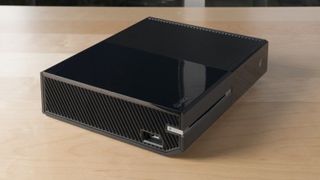
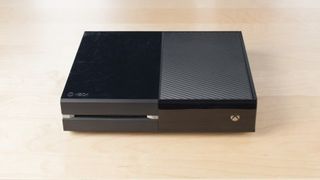
Measuring in at 274 x 79 x 333 mm (L x H x W), the Xbox One's sheer size and girth harkens back to the original Xbox, an imposing black plastic beast covered in black plastic ridges. It's taller, wider and heavier than the PS4 (8 lbs compared to 7.1), and has opted for a pure rectangular design rather than copying Sony's parallelogram. You'll also have to make room for its external power adapter, a feature inherited from the Xbox 360. A common feature on both systems, though, is the button-less design: both the power and eject spaces are touch-capacitive.
Xbox One
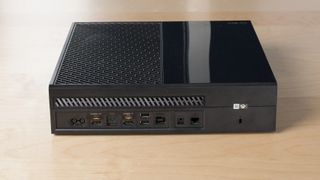
At first glance it looks almost identical to an audio receiver. Which is ironic, as Microsoft's jet-black console would very much like to replace that as the center of your home entertainment system. The top of the system is where heat gets dissipated while the two sides host ancillary grilles and a single USB port. Flip the machine around and you'll see a plethora of ports. It has all your standard nodes: Ethernet, HDMI-out, power, S/PDIF (commonly used for optical audio), dual USB 3.0 ports and an IR out. Additionally, there are two proprietary ports, one for hooking in the Kinect, and an HDMI-in, which is how you feed the Xbox One a TV signal from a cable box. But if have plans to use the Xbox One's HDMI-in to hook in another console, forget it. The HDMI-in can function as a passthrough and let any old HDMI signal in, but this introduces a lot of input lag, making it no good for hooking in another system.

Kinect

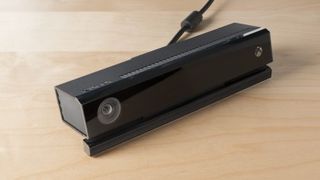
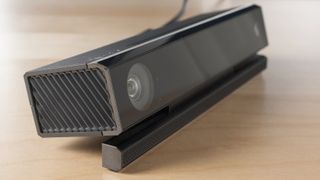
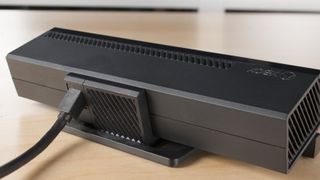
If the Xbox One leaves behind one memory in gamers' minds, it will likely be of the Kinect. Some love it. Some hate it. Others still don't get what it is and why it was necessary. No matter what camp you fall into, Microsoft has given you a choice whether you want Kinect in your home. Starting in June, the Kinect became an optional peripheral rather than a mandatory pack-in. Buying an Xbox One without a Kinect not only saves you $100 off the sticker price, but also frees up an extra 10% of processing power in certain games that was reserved for image processing.
Xbox One
For awhile after launch, we stood by Microsoft's decision to keep Kinect, the all-seeing eye that allows you to shout voice commands, video chat and play full-body games, included in every box. We were told how crucial it was going to be to the next-gen experience and how innovative games were being developed that leveraged the new technology. And for about six months after launch, we believed it. Then the decision came down to cut Kinect from the basic package and instead of dozens of new, ground-breaking games, we got Disney Fantasia: Music Evolved.
There's still a showroom factor when you use Kinect. And yes, voice commands do sometimes help to navigate around the Xbox's cluttered, convoluted interface. But at the end of the day, this mandatory pack-in is more hassle than it's worth. Apparently, Microsoft thinks so too.
Xbox One

Xbox One specifications

Microsoft's bid for living room supremacy is powered by an AMD processor, backed by 8GB of DDR3 memory and 32MB of ultra fast ESRAM. For storage, most consoles come with a 500GB hard drive to keep your media, gameplay videos and game installs, though some special editions have started to pack-in a 1TB drive instead. But, unlike the PS4, there's no swapping out that mechanical drive for solid state and even attempting it will void your warranty.
Whether the system is ultimately faster than the PS4 is up for debate. The only thing we know for sure is that several games currently play in 1080p on PlayStation while only achieving 720p or 900p on Xbox. Times are changing, though. Because Microsoft dropped Kinect, Xbox has an extra 10% of memory space available to use in future games. But, less clear however, is the role DirectX 12 will play in future releases. There's skepticism on both sides of the aisle in whether it will actually change the overall resolution of games, or if we'll just get a small bump in load times.
Xbox One

Features

Microsoft captured the zeitgeist of the 21st century in the Xbox One. It's a connected system that, if you let it, can touch every area of your life, from your social habits to your media preferences and everything in between. The best features on Xbox reflect that philosophy: Game DVR lets you record, edit and share your "dude! Did you see that?" moments, while Xbox OneGuide will cull your thousand-or-so channels of cable to five or six recommended shows.
Every month, the team adds to these technologies and the choices Microsoft is making seem deliberate. In the time since last year, the Xbox has gained a Friends section on the home screen, DLNA support, as well as improved Snap functionality. Achievements are now easier to access and we've seen the return of our digital avatars from the Xbox 360. Recently, Microsoft has made the push to connect Windows 10 PCs and Xbox Ones by giving the former the ability to stream games over a home network and has finally released the screenshot feature PS4 has had since launch. There have been some downturns in that time, too, but by and large Microsoft's media dream machine is making a comeback one first-party exclusive at a time.

What's in the box?

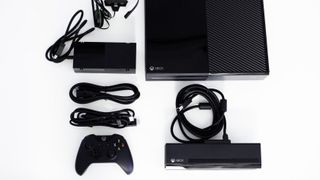
The biggest change from last year is that today Xbox One comes in two flavors, with Kinect or without. Either package will come with a power cable and adapter (aka the power brick), a headset adapter, a throw-away headset (seriously, buy a replacement from Turtle Beach ASAP), an HDMI cable and controller with batteries, but you won't get a Kinect unless you pony up an extra $100. You'll also get a 14-day free trial of Xbox Live Gold which will net you at least one game for free as soon as you turn the system on.
Xbox One review

Setup

Setting up your brand-new Xbox One has remain almost unchanged since its launch last year, and is best described as simple and long. Simple in the sense that all you'll need to do is follow on-screen instructions to set up a Microsoft account and agree to few terms and conditions, but long in that the initial update, which is mandatory before you do anything, will take anywhere from 30 minutes to three hours depending on your connection speed. There's been quite a few firmware updates since launch, too, so it's better to start installing this stuff right before bed so that you can jump in early the next morning.
And if you plan to watch TV on the console, you'll want to run an HDMI cable from your cable box into the system's HDMI-in port. You'll then need to run the OneGuide's setup, which isn't too complex, but we'll get into that in just a few minutes. Also, it should be noted that its online requirement, which threatened to lock up the system without a daily server ping, has been dialed way, way down. Out of the box, your Xbox One will need to download a day one patch before you even arrive at the homescreen. After that, however, you can cut the Ethernet cable or smash your router; there's no further online connectivity needed for single player gaming. That doesn't mean you won't want that Internet connectivity to make the most of your console, but having a system that works entirely offline is a viable option.

Snap

Snapping is the Xbox's catchy name for multitasking, and has been the target for some of the system's biggest patches since launch. Snapping lets you run two Xbox One apps at once, giving a third of the screen to one app off to the right, and the rest to your primary engagement. It's a good way to do a little Internet Explorer browsing while you wait for a friend to join your game, but beyond that it can be straining on the eyes unless your TV or projector screen is very large.
Xbox One review
Before this year in order to "snap" an app you needed to exit what you were doing, find the app you want to snap, press and hold the menu button and select the snap option. Unsnapping required a nearly identical process: Leave the game, find the app running on the right side of your screen and then unsnap it. Finally, thanks to Microsoft's October system update, we have finally seen a streamlined process. Essentially, double tapping the Xbox jewel button brings up a thumb stick-enabled Snap menu. Press left and you'll move back to your primary application. Pressing right specifically brings up achievements, while up brings you to the home page to choose any of your other applications. Down, as you might've guessed, closes the Snap and resumes your main application.
Kinect makes it even easier, allowing users to simply say "Xbox snap Skype" to get the side by side feature working. It's also much easier to just say "switch" for toggling between the two rather using the controller. While it's impressive that the Xbox One's hardware is capable of juggling all this without a drop in gaming performance, it comes off as something you can do, but not something you'll actually want to do, at least very often.

Xbox OneGuide

One of the Xbox One's best features is its ability to integrate with your cable or satellite feed thanks to an HDMI-in port. Anyone who's had cable installed in their home probably shudders at the thought of fooling with that precarious mix of coaxial and HDMI, but fear not, setting it up is easier than finding your cable company's service number.
After connecting your cable box to the Xbox One via HDMI there's a setup wizard to take you through all the steps. All you need to know is your service provider and zip code. Punch that in and the Xbox does the rest.The result is the OneGuide, live TV on your game console organized a lot like your cable's built-in menu. It can be navigated just like the One's general interface, with speech, gestures, the controller or Smartglass.
Once you're set up you'll be able to use OneGuide like a TiVo mixed with a top-tier set-top box. You can use it to set reminders for your favorite shows or, if you're not feeling up to finding something for yourself, get a list of recommended content based on what's trending and past viewing preferences. It's powerful, smart technology that truly integrates the Xbox into the media center in a way that it never was before.
Xbox One review
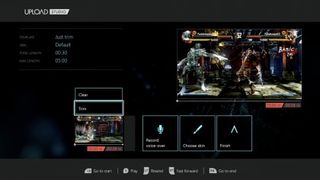
Game DVR and Upload Studio in action.

Game DVR and Live streaming

Being able to record native gameplay, without the use of an added peripheral, is something new to this generation of consoles. Both the Xbox One and PS4 are able to record, edit and share your favorite moments with your friends, but only on Xbox One will you be able to use Upload Studio to send files directly to the cloud. That may not sound like a big deal, but having the ability to manipulate the raw video file on a PC instead of having to make edits inside half-baked video editing software makes a world of difference to wannabe YouTube stars and anyone interested in starting their own "Let's Play" channel. Upload Studio has a simple suite of tools, and allows you to record a voice over commentary. Moreover, you can use Kinect's video recording ability to place yourself in the video, picture-in-picture style.
However, getting raw gameplay footage is tricky. Unlike the PS4, which keeps a running archive of your last fifteen minutes of gameplay, the Xbox One only records the last 30 seconds. To save it to the hard drive you can say "Xbox record that" to Kinect and a 720p recording of your last half-minute of gameplay will be stored to OneDrive.
Xbox One
A more recent addition to Xbox One's firmware modified the 30-second rule, but requires Game DVR to be snapped while recording. Regardless if DVR is snapped or not, one feature that is unique to Xbox One is that games can be programmed to automatically engage the DVR. Battlefield 4, for example, records when you rank up or earn an achievement and EA Sports UFC automatically saves footage of your best knock-outs.
At one point the only way to see this plethora of video content was to see friends' shared clips in your activity feed. Those feeds were rather buried though, so chances of finding your friend's footage wasn't likely unless they gave you a heads up of what to look for. Now you're able to embed your favorite gameplay clips directly into your gamer profile, in what Microsoft is calling your "showcase."
Showcases contain clips, achievement or pictures that you find to be the most representative of your personality and works as a great differentiator to the all-too-similar profile pages we're used to seeing.
Xbox One review
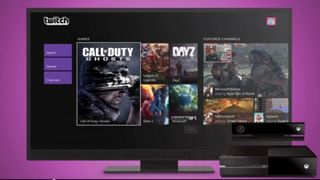
Streaming to Twitch has never been easier.
The last feature worth pointing out in regards to video capture is live streaming, a capability the Xbox One was missing one short year ago. Setting up a stream is as simple as it is on a PC, and only requires you downloading the Twitch app and connecting it to your account by signing in. Once paired, you'll be able to stream gameplay and use the Kinect sensor as a quasi-webcam for users to be able to see and hear you. Watching Twitch is just as easy as streaming it, thanks to updates to the GUI that allow you to sort content by parameters like kill-death ratio in first-person shooters, highest combo score in fighting games or even incredibly niche values like Grimoire Score in Destiny.

SmartGlass

Xbox One review
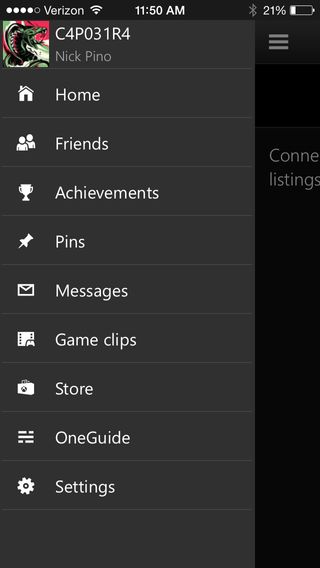
Smartglass is the Xbox's second screen experience. It was introduced on the Xbox 360 and lets you navigate menus and see system information on your tablet or smartphone. The app is back for Xbox One, and has greatly improved functionality. You can now launch apps from the second screen, and make purchases and start downloads on your home console while you're out and about. If you're a member of Xbox Live Gold, you can even use Smartglass to view this month's free games and, if you're Xbox is set to "remote startup," can start downloading them while you're out and about. Several games now have complimentary companion apps of their own.
Smartglass is an incredibly versatile program that keeps you connected to your online friend community when you can't be right in front of your console. It's an addicting addition to your smartphone - it's available on both iOS and Android devices - and, best of all, it's free. The Windows 8 Smartglass app has its own special features. You can throw a browser page from the console directly onto the screen of your W8 device and use it to pull up extra information on actors from Netflix in real-time while watching a movie.

EA Access

Announced in late July, EA signed a contract with Microsoft giving the Xbox One a publisher-specific download platform that gives gamers access to a vault of valuable titles and first dibs on upcoming demos. The service, called EA Access, costs $4.99 a month or $30 per year and currently has FIFA 14, Madden NFL 25, Peggle 2, Need for Speed: Rivals, Plants vs Zombies: Garden Warfare, EA Sports UFC, Battlefield 4 and the terrible, horrible, no good, very bad, bad NBA Live 15 available for download.
Xbox One
Whether or not Access is a selling point for you largely depends on how many of the publisher's titles you play, and if you're willing to shell out another $30 per year on top of paying for Xbox Live Gold service. Still, if getting five days closer to the next Mass Effect game and the eight or so titles seem appealing, EA Access is well-worth its upfront cost.
PRICES - MICROSOFT XBOX ONE:

Microsoft Xbox One deals

PRE-OWNED 500GB CONSOLE
$179.99
Shipping from Free
$200.00
Shipping from Free
GEARS OF WAR: ULTIMATE EDITION
GEARS OF WAR: ULTIMATE EDITION BUNDLE
$244.24
Shipping from Free